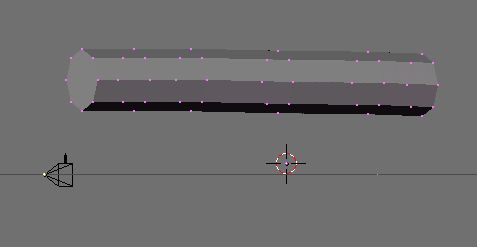
If you rotate the view a bit to the left you can see that the end is indeed now filled instead of hollow. Rotate the model back to the side view, and we will begin sizing the segments.
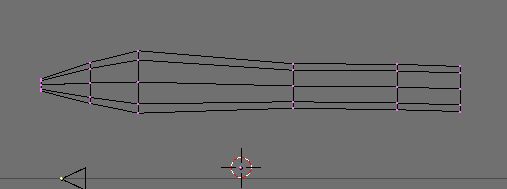
Select the leftmost set of points (the front) and hit the S key to resize. Shrink them down pretty far. Always keep in mind that when you size with the S key you are sizing in 3 dimensions so it is changing an axis you can't see as well. Select the other circular groups of points and move them around and size them until you have something like the figure above.
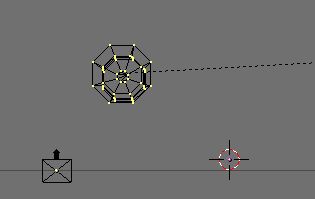
This is me using the R key to rotate the ship so the sides of the circle are flat and can have our wings later lined up to them. I mentioned for you to do this earlier. Notice how the points from the front are not aligned that great. This is me being sloppy on the tutorial because I didn't know what shape I was going to do beforehand. However, YOUR circles should line up quite nicely.
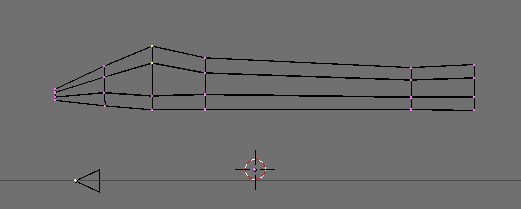
What I'm doing here in this picture is box selecting a few points at the top of a ring to create a raised cockpit. Grab these points with a B box select, then press G to move them up a bit.
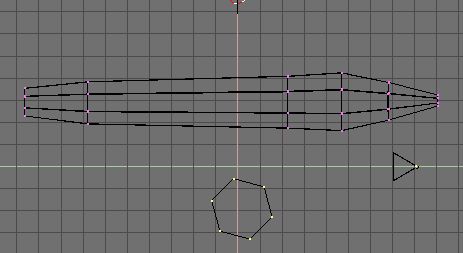
Now we are ready to start on the wings. Most ships have some form of wing like structure, even if they are space ships. Change your view with the keypad (7 is a shortcut to top view) to the top view. Now create a new mesh. Hit SHIFT-A for the menu and pick Mesh, then Circle (this is the last time I will remind you of this command.) A wing can be created with as little as 4 points, but let's use 6 so we can make it a bit more fancy.