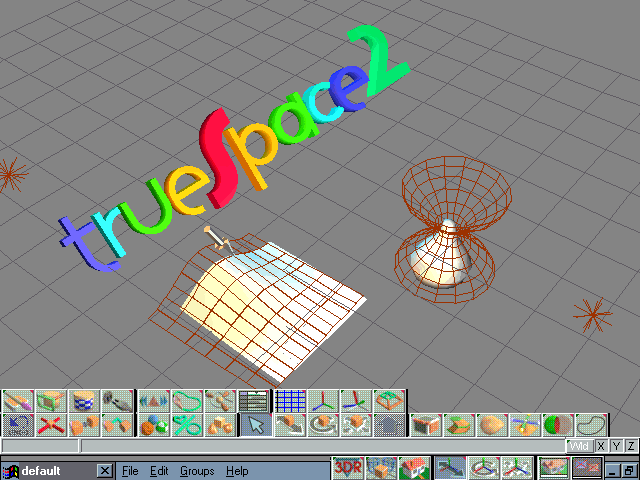
First off, we'll start Truespace. Click on your
shortcut or start Truespace manually. If you have not saved any scenes
or changed the default startup screen when you installed the demo,
you should see a screen like this.
The thing to note from the startup screen is
that it has a default grid and default lighting assigned for the
scene. Note the two 'stars'
that are visible, one on the left border and the other on the right
of the picture. There's a third light at the top of the picture,
but because of the way we are viewing the scene, it is not visible
just yet. Well use the default light setting when we create our
model.
|
 |
(Note: Throughout the tutorial, you
can click on any of the images to get a larger and more detailed view)
|
  In
the lower right corner of the scene above, you'll notice a menu
bar pictured like the one on the left. Get familiar with the use
of these menu icons, because we'll be using them quite often. If
you haven't changed anything on the Preferences menu, you should
see text on the left side of the status bar when you pass your mouse
over these controls. The text gives you an idea of what the selection
does. In
the lower right corner of the scene above, you'll notice a menu
bar pictured like the one on the left. Get familiar with the use
of these menu icons, because we'll be using them quite often. If
you haven't changed anything on the Preferences menu, you should
see text on the left side of the status bar when you pass your mouse
over these controls. The text gives you an idea of what the selection
does.
If you were not getting the context help text
when you passed the mouse over any of the controls, click on Help
and make sure the Help Bar selection is checked.
Remember, this tutorial is on how to create
models for Freespace, not on how to use Truespace, so there will
be minimal information on Truespace operation. If you're unfamiliar
with using Truespace, please try it for awhile and get comfortable
with its operation before you begin your modeling.
|
|
Tilt the view backward so you are looking at
the scene with more depth to the picture. You should now see the
third default light at the top of the scene.
Let's start by clearing our work area. Go to
the bottom menu, click on File, then Scene, and finally
New. The Truespace startup screen will clear, leaving only
the default lights visible.
Some default preferences were set when we first
started Truespace, and we'll check these next.
Go to the menu again, click on File,
then click on Preferences...
|

|
|
 A
window should open showing the preferences that were set when we
loaded Truespace's startup screen. A
window should open showing the preferences that were set when we
loaded Truespace's startup screen.
There are checkboxes for Dynapick, OrthoNav,
LoadScene, TopMenu, Titles, and Tablet, along with two
buttons for selecting the Scene Detail and Default Lights.
Make sure Dynapick is turned off, OrthoNav
is turned on, and the Default Lights is set to Colored
Lights.
Titles places a title bar on any of our
sub-windows.
With LoadScene checked, the next time
we start Truespace will automatically load the last scene we were
working on, and if SaveState is check, will load our preferences
that we've selected. Clicking on TopMenu will move the menu
bar to the top of the display window.
|
We now have a working 'sketchpad' for creating our
models. Don't forget to look over the Truespace documentation if any of
the concepts we discussed sounded confusing. In the next lesson, we'll
start creating our very first model.
Lesson 2 - Creating our first object
|