|
 Let's
begin where we left off at the start of the last lesson. Let's
begin where we left off at the start of the last lesson.
Remember that we decided to use install01-04a.pcx
for our model texture. We extracted it from the freespace.vp file and
placed it into our model directory. We also converted it into a BMP file,
making sure the size and color depth were correct, and saved it in the
same directory with a DOS file name (I've given it an arbitrary name,
in01-04a.bmp, which is in 8.3 dos format for Truespace to recognize).
|
  Let's
load our model back into Truespace. Click on File, Scene,
then Load... Once the model is loaded, right click on the Object
tool to display the Object info window again and verify that the
model's size and position has not changed. Let's
load our model back into Truespace. Click on File, Scene,
then Load... Once the model is loaded, right click on the Object
tool to display the Object info window again and verify that the
model's size and position has not changed.
Remember that Truespace has already applied a default
texture to our model.
Click on the Render Tool 
What we'll need to do now is to change the default
texture to the one that we wish to use.
|
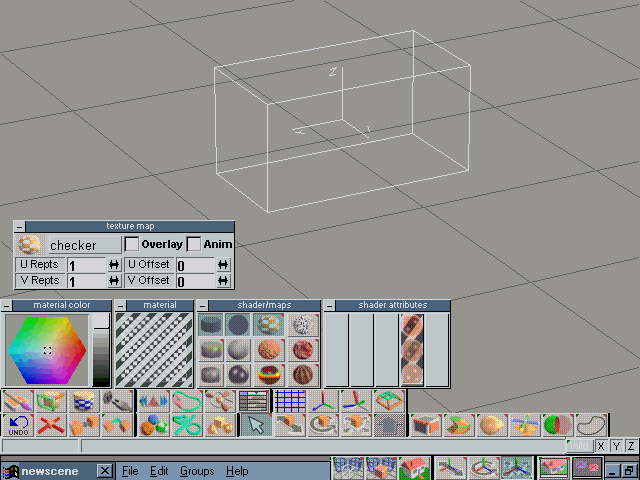
Left click on the Paint Face tool .
Four material property panels will open: a Material color, Material
preview , Shader/Maps, and Shader attributes. .
Four material property panels will open: a Material color, Material
preview , Shader/Maps, and Shader attributes. 
Look at the Shader/Maps panel. We need to select
the left 2 items of the top row, which will make our texture faceted
and flat. (These are modeling terms. Please read the Truespace
documentation for more information on rendering modes. Search for the
term Rendering.)
 To
load our texture, we need to left click on the 3rd icon To
load our texture, we need to left click on the 3rd icon .
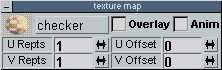
A Texture map window will open, showing the current texture, the
texture modes, and entry boxes for U and V Repeats, and U and V Offset
values. .
A Texture map window will open, showing the current texture, the
texture modes, and entry boxes for U and V Repeats, and U and V Offset
values.
|
|
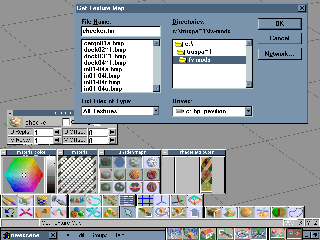
Notice that Truespace used checker as its default
texture. Click on the box where the texture name is displayed and finally
we'll get to select our texture map.
A standard windows dialog box will appear. Change
to the directory where you've saved your texture maps, select the texture
from the left dialog box and click OK. (You remembered to select in01-04a.bmp,
right?)
|
|

Our texture will load and will display in the Material
preview panel. You can click in the Material panel to change the
representation of the texture between circular or rectangular view. I
closed the Material color and Shader attributes windows
because we won't be needing them.
That was a lot of clicking!
|
|
One....more.....time.....(click!)....
Lesson 4 - Applying Texture to our Model
|