Freespace and Freespace 2
Model Texturing Tutorial

Lesson 5 - Testing our Model


Cob2fs converted our model from our tutor1.scn file and produced a file named test.pof for use in Freespace. Before we can actually use this file, we must rename it to something that Freespace will recognize.

Copy the converted model into the Freespace/Data/Models directory. Rather than adding our model to the ships.tbl file, we'll rename our model to one of the existing items. I renamed my converted model to cargo02.pof. This makes it very easy to examine the model in one of the existing missions that use cargo02, and easy to look at from the tech. database screen. If you decided to name your model the same, then you could look at it in the tech. area by selecting TC2.

We have to copy all of the textures that we used to paint our model into the Freespace/Data/Maps directory. Remember to copy the .pcx files, not the .bmp files, because FreeSpace will only use the .pcx texture maps.

Make sure you have copied both the model and its textures into the proper directory. If you forget to copy the texture maps, Freespace will crash when you start.

Don't worry about naming your files the same as those used by FreeSpace, because the original data is preserved in the game .vp file. The game will load any files from the Freespace/Data/ directories before using any files of the same name that are located in the game .vp file. Whenever we want to restore the original textures all we need to do is delete our new files from the Freespace/Data/Maps and Freespace/Data/Models directories.

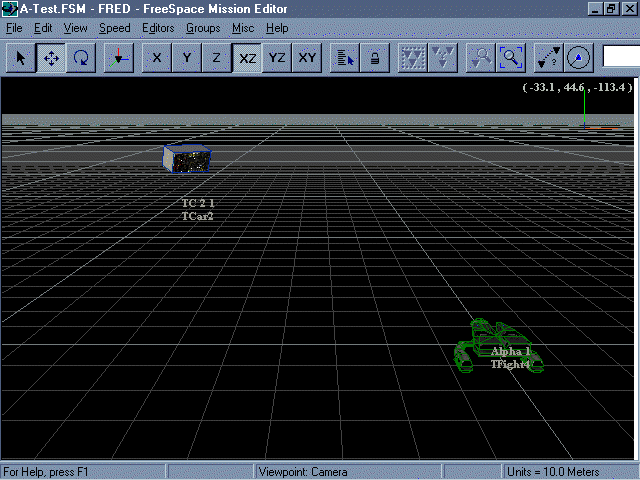
Our model in Fred - click for larger view

We can checkout our model in Fred. Create a new mission, and just add a TC2 item somewhere on the grid. If you have Show Models checked in the menu, we should be able to see our textured model in the display area.

If the texture does not show or the model just doesn't look right, go back in to Truespace and make the necessary changes.

Tech area - click for larger view

Let's start Freespace and check our model in the tech. area.

Our model shows! But it seems to be shifted toward the top of the display....

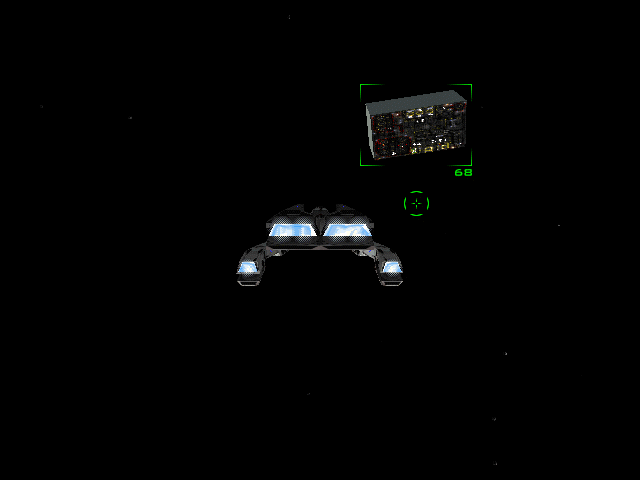
Target Aquired! - click for larget view

....and when we target it in a test mission, the reticule seems to be offset from the center. What caused this ?

When we created our first shape (the cube) back in lesson 2, I mentioned that Truespace automatically assigns a default size and location to our object. If you look at the Object Info window that we had, you'll see that Truespace placed our object at the location 0.000, 0.000, 100.0 ! Another 'feature'! (Actually, this places the model above the grid plane, which is fine if you want to create 3d scenes, but lousy for our purposes.)

To get our target reticule located to the center of our model, we'll have to go back in to Truespace and change the Z location value to 0.000.

Tech Database - click for larger view

Save the revised model, convert it using Cob2fs or Cob2fs2, and move the new POF file into your Freespace/Data/Models directory.

Check the model again in the tech database and in a test mission.

Up close and personnal - click for larger view

click for larger view

We're done! That wasn't so hard after all, was it? Hope to see all your new models down the road as you experiment with Truespace.

I plan on creating a follow-up tutorial were we'll discuss creating more complex models that have subsystems, different level of details, and debris pieces.

If you have any questions or comments, please post them to the Freespace Developers List so we may all benefit.

See you on PXO!
Robert "Sparks" Delinsky

fini

  Site
  - Current News
  - News Archive
  - Submit News
  - Poll Archives
  - Articles
  - Staff


  FreeSpace
  - Game Info
  - Image Gallery
  - Tactical
  - Downloads
  - Cheats
  - Weapons Database
  - Multiplayer
  - FRED Help
  - Silent Threat
  - FAQ
  - MODing
  - Missions


  FreeSpace 2
  - Game Info
  - Image Gallery
  - Tactical
  - Downloads
  - Weapons Database
  - Game Preview
  - Cheats
  - FRED2 Help
  - Concept Art
  - MODing
  - Missions


  Hosted
  - Get Hosted
  - Babylon Project
  - Campaign Watch
  - COB2POF
  - Ellis Station
  - FRED Zone
  - GTD Excellence
  - LFTS
  - Segeltuch
  - Tech Freespace
  - Triton Dynamics
  - Source Code Project
  - United Space


  Campaigns
  - Aeos Affair
  - Aftermath
  - BlackWater Ops
  - Behind Enemy Lines
  - Derelict
  - Project Armageddon
  - Twilight
  - The Babel Effect
  - Warzone


  Forums
  - VWatchBB
  - Volition BB
  - FreeSpace
  - SquadWar
  - FRED2


  Community
  - Hyperlinks
  - Wilds Warped Rant
  - Interviews
  - FS1 Webring
  - FS2 Webring
  - FS Frenzy
  - Fan Fiction
  - Fan Art
  - Editorials


  Network
  - Volition Watch
  - Summoner Watch
  - Red Faction Watch
  - Archives


  Staff
  - Brando
  - Dynamo
  - IceFire
  - Orange
  - Remora
  - Stealth


FreeSpace Watch is copyrighted 2000 except where Volition or Interplay may apply. Web design by Colin Czerneda and Todd Miller.