
Now that you have saved the model and converted the textures, we can now convert it to a Freespace 2 POF. You can use either of two tools, a Windows based version of COB 2 POF shown above, or the DOS version in the next picture.
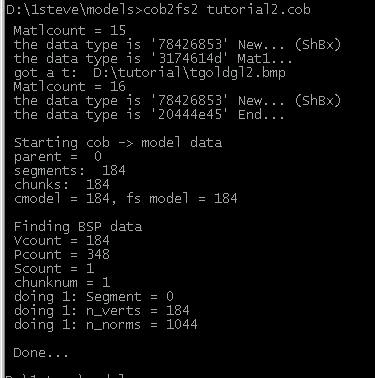
You can get the COB2POF tool here, just click on the downloads section of Freespace 2 on the right menu.
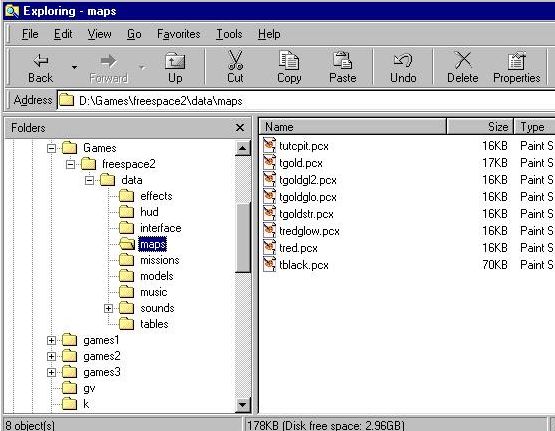
To get your model ready for importing into the game itself, you should place the files in the correct directories. Place all the PCX textures in the maps directory, as shown above, and place your new POF model in the models directory. We will now look at the model with the Modelview tool. Modelview will look for the textures in the same directory as the POF file OR in your FS2 maps directory, if the model is in the models directory. Modelview is part of the Freespace 2 Toolkit, and you can also download it at the FS2 downloads link at the right.
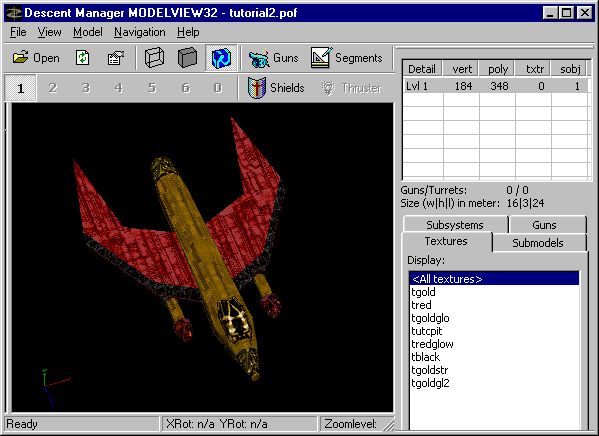
There's our ship in Modelview as the converted POF. Notice it is in fact 24 meters long. :) When you add data to the model, such as gun firing points, you can view them in here. However, this is the end of this tutorial. You have created a ship that is in the Freespace 2 format! Congratulations! The next step is to use a tool, like the FSMM2 tool, to add the important ship data to your file. I recommend going straight to Bobbaou's tutorial, at this link. This will tell you how to use FSMM2 to add in your ship data.
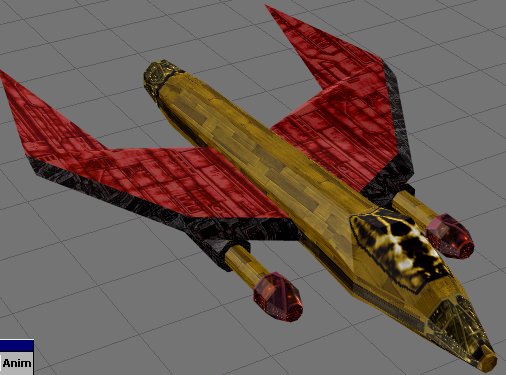
To download the COB (large and small), textures, and final POF for this ship, click here.