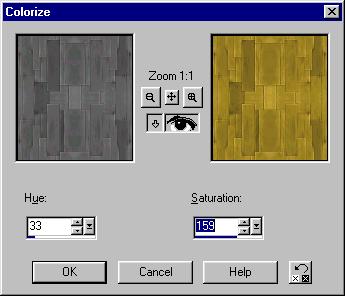
Now we will colorize the awacs tile gold. You just have to go to the Colors menu, pick Colorize, and you will see this screen. Adjust the hue until you get the color you are looking for, in this case, gold. The saturation will increase the intensity of the color. Since it was grey before, it needs a lot of saturation. You can use Colorize and other tools for the color menu to change your texture colors.
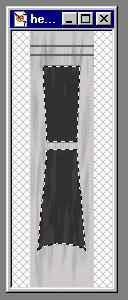
Now that we have our base gold tile, I want it to be behind the cockpit as well. Use the magic wand to select the cockpit, and hold shift the second time to add to your current selection (you'll see a small + appear.) Now we have selected the cockpit glass area. Then we want to copy it to the clipboard with Ctrl-C.
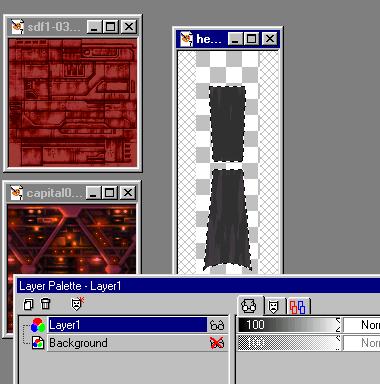
We now need to add a new layer using the Layer menu. Once you do this it will select the new layer. Go to the Edit menu, and choose Paste into Selection. This copies the cockpit glass to the new layer. You should see the Layer toolbar that shows your current layer (if not, go to View, Toolbars.) Then click the glasses by the background to make it invisible. What you see in the picture is the new layer you made with just the cockpit on it. The checkered background is PSP indicating that the rest is transparent.
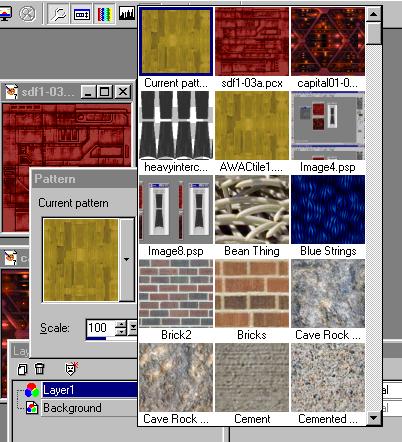
Now we want to fill the background layer with the awacs tile pattern. Click the glasses and put the background view back on, then select the background layer. In PSP 7 you will click on the black arrow in your color palette on the right hand side and select Pattern. Then, click the color box and you will select the pattern to paint with. You can select from current images as well as premade patterns. Pick the awacs tile as shown. If you are doing this with PSP 6 or earlier, you choose the pattern with the fill tool options (the bucket icon.)
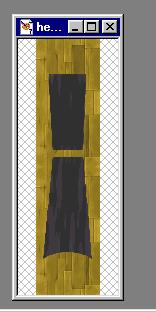
Now, use the fill tool (the bucket) and fill in the entire background level with the base gold tile. Turn the tolerance up to 200 on the tool options so it will fill everything.