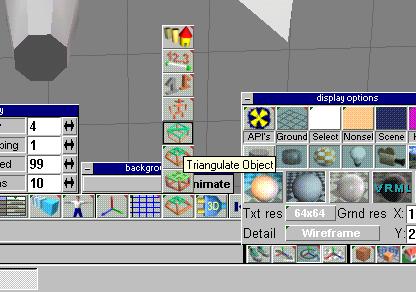
Another useful thing to do for your model is to triangulate it. Truespace (and Freespace) will show a polygon that is not flat as a hole from certain angles. If you triangulate the model, the resulting triangular faces will all be flat. However, this does increase your poly count. I actually did not triangulate the model at this point.
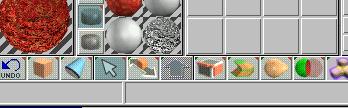
Let's look at the object properties. You will want to look at these a lot during modeling. Right click on the arrow shown selected in this picture.
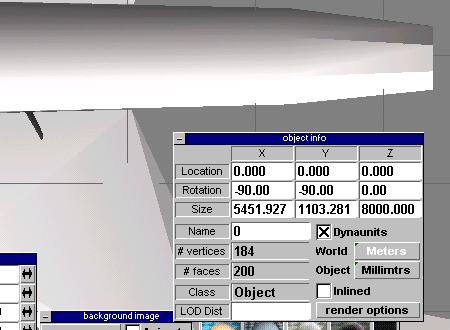
To orient the model correctly for Freespace, the front must be facing to the LEFT. Usually the way I create models means I have to rotate my X and Y axis -90 degrees for a left orientation, as shown. Check your left view in the view box (the little house icon.)
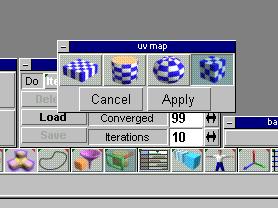
Once you have properly oriented the model, we will want to apply a UV mapping. The UV determines how materials (textures) are painted on the model. Of the options in TrueSpace, cubic texturing is definitely the way to go. Choose it as shown in the picture. If you are not using TS 4, or TS 3 with the update patch, you do not have cubic UV mapping available. Unfortunately, the best at this point is cylindrical but it really sucks.
At this point, I have to admit there is something I dont understand about TrueSpace. There are apparently two different kinds of texturing, and only one of them exports correctly to Freespace 2. So, what I have to do is load in a model that I know has a correct texture mapping, and use the magnifying glass tool to pick its texture. In this example, I've loaded in my Zentraedi battle pod. I will make the finished model available here with textures so you can load it in at this point instead of my battlepod.